Check your maximum RAM capacity of your system
Step 1: Open Powershell.
"Code. Create. Level Up. Your daily source for game dev breakthroughs, app design trends, and full-stack innovation."
Check your maximum RAM capacity of your system
Step 1: Open Powershell.
Note: HC-05 bluetooth module will only work with Arduino UNO R3. It will not work in other arduino boards like nano,R4,etc.
Points to Remeber before connection:
Watch How to Connect HC-05 Bluetooth Module with App
Robotic Arm Controller
Note: HC-05 bluetooth module will only work with Arduino UNO R3. It will not work in other arduino boards like nano,R4,etc.
Points to Remeber before connection:
Watch How to Connect HC-05 Bluetooth Module with App
Record button in Robotic Arm Controller app is used when you want to make your arm perform a repetitive task, like box picking from a conveyor belt. User have to record every steps once to be performed by the arm and that's all. Press play button and the arm will continuously perform the task.
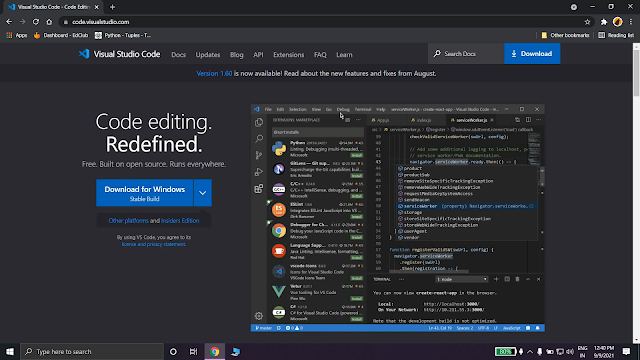
Step I: Open this link in any browser: https://code.visualstudio.com/
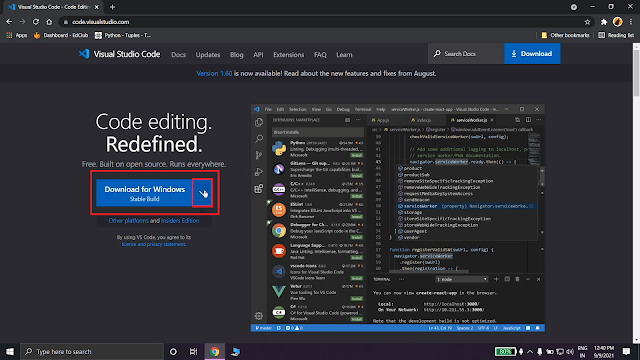
Step II: You will get "Download for Windows" button. You can also download visual studio code by clicking on that for 64 bits else click on that arrow beside the button.
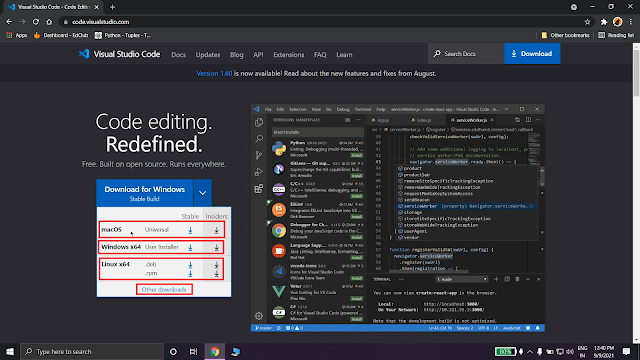
Step III: Now, after that, you can download visual studio code for macOS, windows x64 and linux x64 by clicking the download buttons on the right side. You can download stable version or insider version as your choice. I prefer stable version to download.
Else, you can click on 'other downloads' at the bottom to download for 32 bit or for ARM.
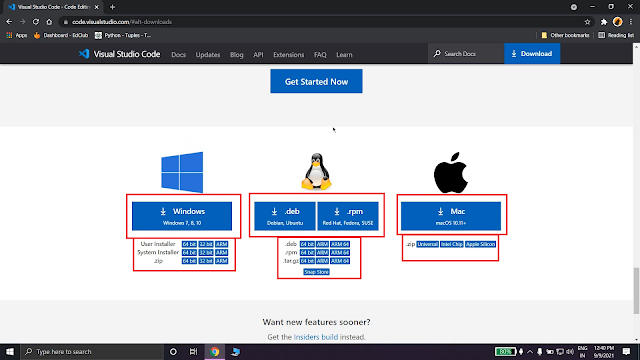
Step IV: After clicking on 'other downloads', you will get an interface like given below. Now you can download visual studio code for windows, linux or mac. You will get many options there so you can select them according to your choice and download it.
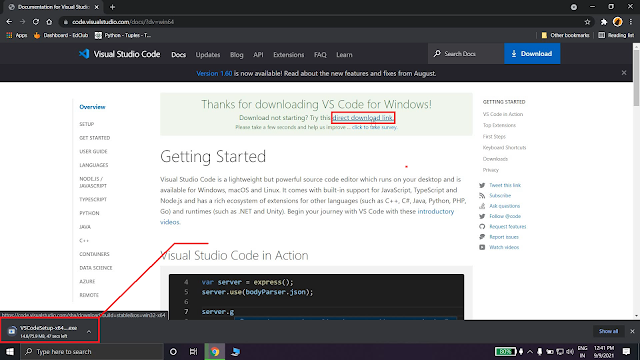
Step V: After clicking any of it, the download will start automatically within 15 seconds. If download didn't start then click on 'direct download link' to download it again.
Step VI: After downloading it, open it and accept the License Agreement and click Next.
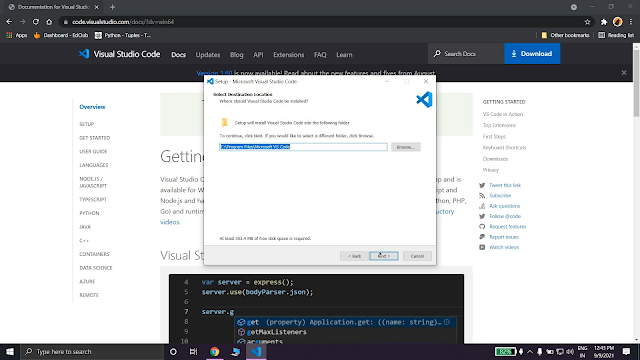
Step VI: Select the path where your visual studio code will install. I prefer let it be set default. Then click Next.
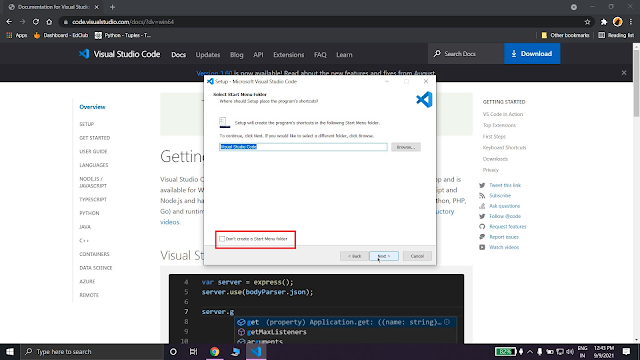
Step VII: If you want to create a folder of Visual Studio code in Start Menu then click Next else check that check box at bottom and then click Next.
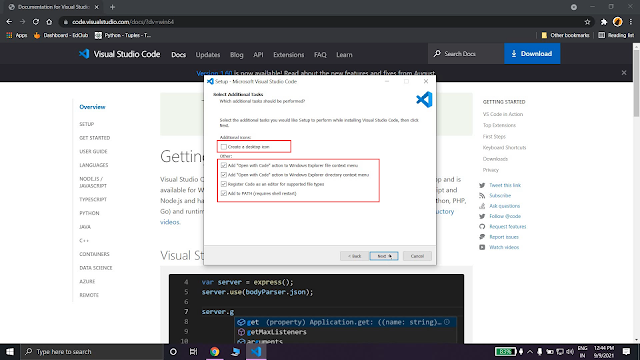
Step VIII: If you want to create a shortcut of visual studio code in desktop then check the first box else uncheck it. then check all the rest check box and click next.
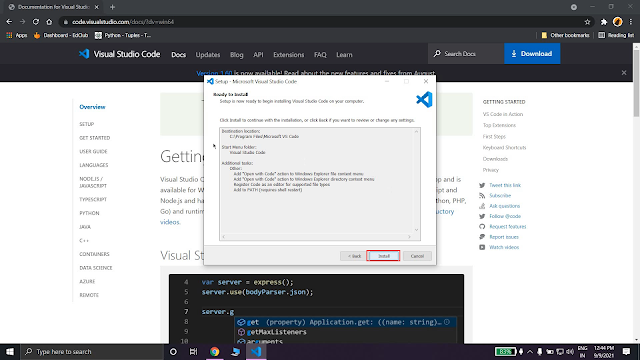
Step IX: Verify your settings and click on install button.
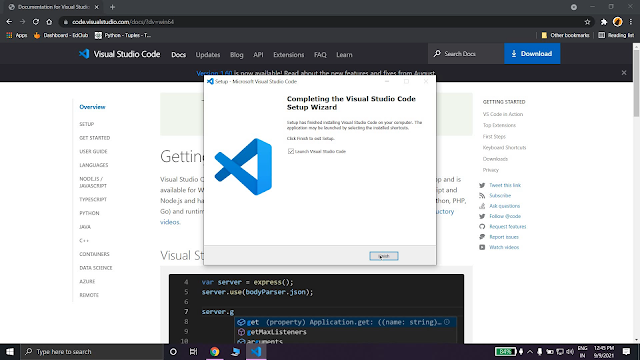
Step X: At last after installation completes, click on Finish. Your visual studio is now installed successfully. Now, enjoy it.
Video:
Updating app on
Google Play Store

Unpublishing app on
Google Play Store