Friday, February 20, 2026

Undead Survivor (Part 07) || Survival Timer
Undead Survivor (Part 05)


Watch Video


Wednesday, February 18, 2026

Ads Scripts (Unity)


This code is very simple and effective. You will not phase any issue.

Setup:

  • Open your project. Click on Windows option and select Package Manger.

  • Click on Packages: option and select Unity Registry.

  • Search for Advertisement Legacy and click on Install button.

  • Go to Edit and select Project Settings...

  • Click on Services. Then select your Organization, then select Create a new cloud project option and click on Create new cloud project and link to unity project button.
  • Select No at the end and click on Save.


  • Click on Dashboard option under Members. Select your game from project list and open it.

  • Go to Services tab.

  • Scroll down, find Unity Ads Monetization and click Launch button. 

  • Click on Enable Ads button visible on left side in blue color.


  • Select I will use Unity Ads and click Next.
  • Select No, I want to start fresh option and click Next.

  • Select first option if your game is live on apple/play store or if not, select second option and click on Add Project button.

  • Click on Finish and you will redirect to this page. Here you will find all the IDs required for the ad setup of your game.
  • Open Unity, right click on Hierarchy window and create an empty gameobject named Ads_Manager. 

  • Drag and Drop the downloaded code in Scripts folder.

  • Add all Scripts inside Ads folder in Ads Manager Gameobject.

  • Drag and Drop respective scripts in Ads_Manager Script.

  • In Initialize_Ads Scripts, Enter Android/IOS Game ID. Check on Is Testing while testing. When you are going to build your app, uncheck it.

  • Similar way, you will find ID for Banner, Interstitial and Rewarded ads. Fill them and you are ready to go.

  • To show the banner ad, go to any of your game script and paste the following code:
        private void Awake()
            {
                StartCoroutine(DisplayAdsWithDelay());
            }

            IEnumerator DisplayAdsWithDelay()
            {
                yield return new WaitForSeconds(1f);
                Ads_Manager.Instance.bannerAds.ShowAds();
            }

 To hide ad, just type this command: Ads_Manager.Instance.bannerAds.HideAds();

To set the position of banner ad, go to Ads_Manager script and replace BOTTOM_CENTER to TOP_CENTER, TOP_RIGHT, TOP_LEFT, BOTTOM_CENTER,etc.


  • To show Interstitial/Video Ad, just type the command: Ads_Manager.Instance.videoAds.ShowAds();

  • To show Rewarded Ads, just type the command: Ads_Manager.Instance.RewardedAds.ShowAds();
Here, when the ads is completely shown, you may give rewards to player like revive, save me, extra money or powerups. This can be done under Rewarded_Ads Scripts inside if condition of OnUnityAdsShowComplete() function.


Friday, February 13, 2026

Undead Survivor (Part 06) || Medkit || Random Medkit Spawn
Undead Survivor (Part 05)


Watch Video


Friday, February 6, 2026

Undead Survivor (Part 05) || Animation || Audio
Undead Survivor (Part 05)


Watch Video


Friday, January 30, 2026

Undead Survivor (Part 04) || Player Health || Zombie Health || Player Healthbar || Score || Restart
Undead Survivor (Part 04)


Watch Video


Friday, January 23, 2026

Undead Survivor (Part 03) || Enemy Movement || Following Player || Random Enemy Spawn Randomly
Undead Survivor (Part 03)


Watch Video


Friday, January 16, 2026

Undead Survivor (Part 02) || Bullet Shooting || Rotating Melee Weapon
Undead Survivor (Part 02)


Watch Video


Friday, January 9, 2026

Undead Survivor (Part 01) || Project Setup || Tilemap || Player Movement || Camera Movement || Unity
Undead Survivor (Part 01)


Watch Video


Thursday, September 9, 2021

How to install Visual studio code


Step I: Open this link in any browser: https://code.visualstudio.com/
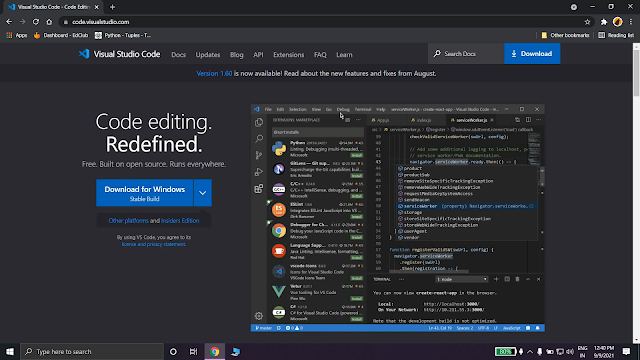


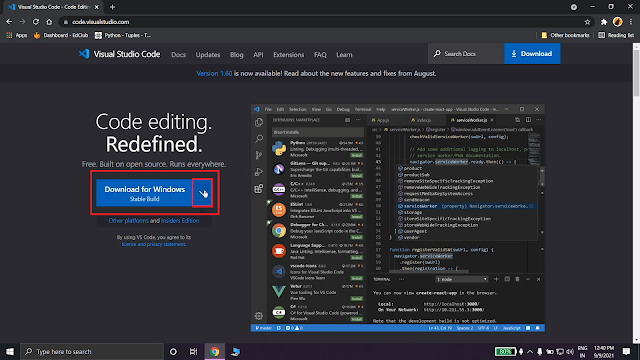
Step II: You will get "Download for Windows" button. You can also download visual studio code by clicking on that for 64 bits else click on that arrow beside the button.


Step III: Now, after that, you can download visual studio code for macOS, windows x64 and linux x64 by clicking the download buttons on the right side. You can download stable version or insider version as your choice. I prefer stable version to download.

Else, you can click on 'other downloads' at the bottom to download for 32 bit or for ARM.
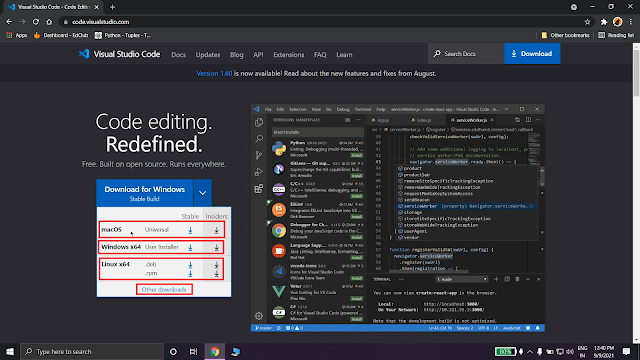


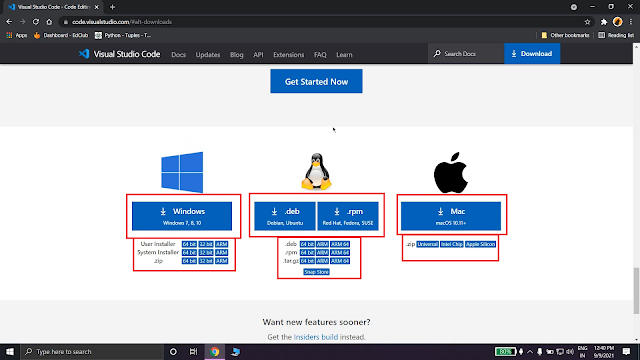
Step IV: After clicking on 'other downloads', you will get an interface like given below. Now you can download visual studio code for windows, linux or mac. You will get many options there so you can select them according to your choice and download it.


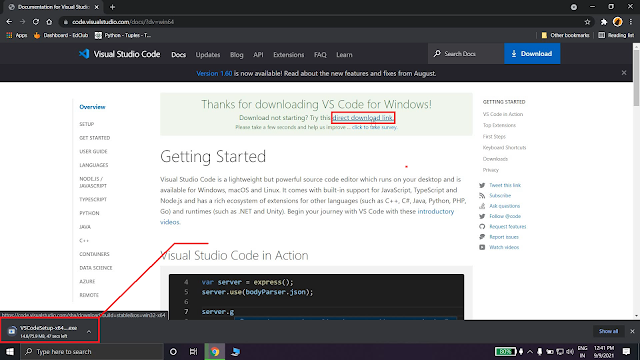
Step V: After clicking any of it, the download will start automatically within 15 seconds. If download didn't start then click on 'direct download link' to download it again.


Step VI: After downloading it, open it and accept the License Agreement and click Next.


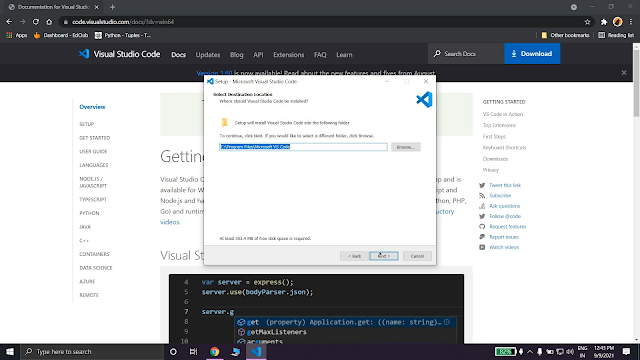
Step VI: Select the path where your visual studio code will install. I prefer let it be set default. Then click Next.


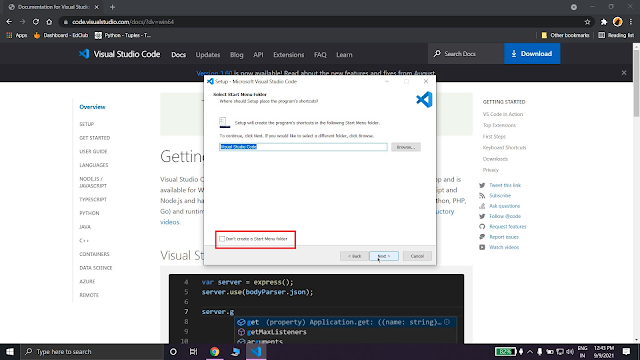
Step VII: If you want to create a folder of Visual Studio code in Start Menu then click Next else check that check box at bottom and then click Next.


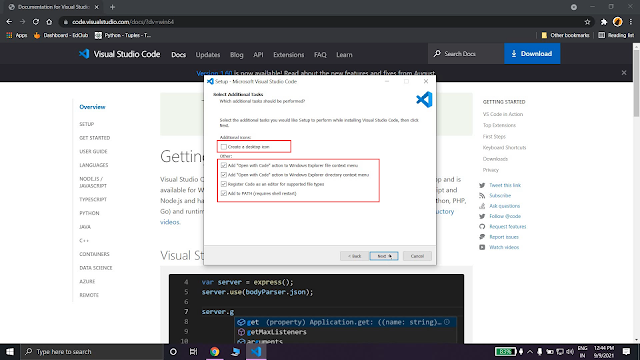
Step VIII: If you want to create a shortcut of visual studio code in desktop then check the first box else uncheck it. then check all the rest check box and click next.


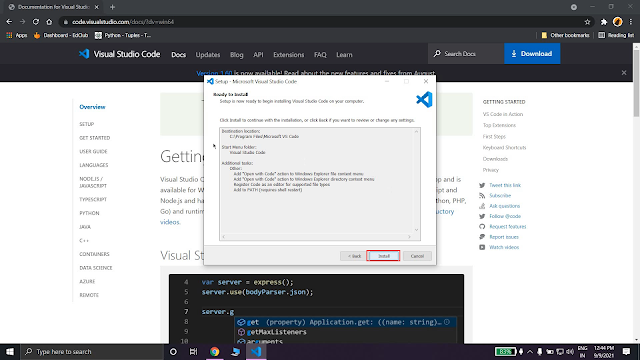
Step IX: Verify your settings and click on install button.


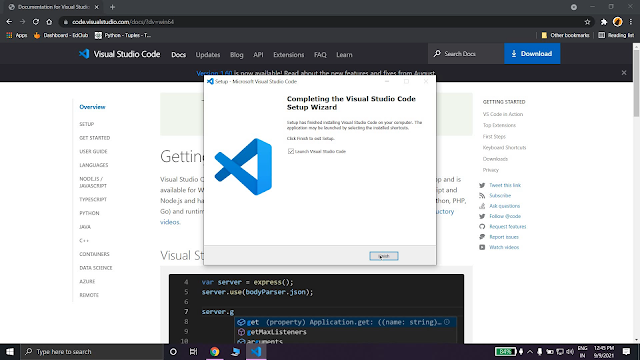
Step X: At last after installation completes, click on Finish. Your visual studio is now installed successfully. Now, enjoy it.


Video:


Tuesday, July 13, 2021

Plinko Game (Part 2)


Step I: Create variables score and turn and assign both the values 0.


Step II: Since there will be only one particle while calculating the score, we need to create a variable particle so create a variable particle and assign its value to null and at the same time, remove the array particles we created in last post.


Step III: Display the score at your desire position. In my case, I am placing it at top right corner.


Step IV: In for loop of division in setup() function, change the variable from 5 to 0 the shift the divisions.


Step V:  Specify the points between the divisions using text.


Step VI: Now create a variable gameState and assign its value to play.


Step VII: Then we will use mouseReleased() function to create new particles at the x position similar to mouse x coordinate and y to 10 and assign it to variable particle which we created in step II.


Step VIII: Write the logic given below to determine in which division the particle is. After then, add the scores according to divisions and once the score is calculated, set the particle to null. At the same time, check that if the turn is greater then or equal to 5 or not. If it is greater then or equal to 5 then change the gameState to 'end'.


Step IX: Now, in mouseReleased() function, increase the turn by 1.


Step X: Then, in draw() function, display the text 'Game Over' using if condition when the gameState will be 'end'. Also, write one more if condition inside this if condition which will restart the game when we press 'ENTER' key.


Bug Fixing:

1. When the gameState is 'end', the plinko, divisions, ground and text of score should not be visible. So, for that, write an if condition that if gameState is not end, then inside it, display text of scores, divisions, plinkos and grounds.


2. When you press the mouse button when the particle is visible on screen, that particle goes vanished and new particle falls again or when the game over and you press the mouse button, the particle is created. To fix it, in mouseReleased() function, we have to write condition that if gameState  is not equal to 'end' or the particle is null, then only, a new particle must be created.


Video:-